Mastering the Native HTML <dialog> Element: A Comprehensive Modern Guide
Nearly ten years after its initial rollout, the native HTML <dialog> element remains a cornerstone of modern web architecture that developers routinely revisit. While seemingly simple at first glance, the element harbors a wealth of nuanced behaviors involving accessibility, open and modal states, advanced CSS styling, custom animations, and its architectural relationship to the newer Popover API. This guide offers a comprehensive, production-ready examination of the native <dialog> element to streamline future development workflows.
Main Facts: What is the Native <dialog> Element?
The HTML <dialog> element represents a dialog box or interactive component, such as a dismissible alert, inspector panel, or custom modal form. Introduced to reduce reliance on heavy third-party JavaScript widget libraries, the native element provides out-of-the-box features that previously required complex engineering:
- Top-Layer Rendering: Modals automatically render on the browser’s top layer, ensuring they sit above all other content without manual
z-indexmanagement. - Inert Backgrounds: When invoked as a modal, the underlying page content automatically becomes
inert, disabling text selection, clicks, and keyboard focus outside the dialog. - Accessibility Affordances: Native handling of the
Esckey to close the element and automatic focus management upon opening.
Chronology: From Basic Markup to Declarative Invoker Commands
1. Basic Markup and Programmatic Control
At its most fundamental level, a dialog requires minimal HTML:
<button id="dialog-button">Open Dialog</button>
<dialog id="dialog">...</dialog>
By default, the element is closed. While developers can force it open via the boolean open attribute (<dialog open>), real-world applications generally require programmatic activation via JavaScript.

const dialogButton = document.querySelector('#dialog-button');
const dialog = document.querySelector('#dialog');

dialogButton.addEventListener('click', () =>
  // Triggers pop-up behavior (non-modal)
  dialog.show();
);
Using show() treats the dialog more like a pop-up than a modal. For true modal experiences—which include a backdrop, viewport centering, and Esc-key dismissal—developers must utilize showModal():
dialogButton.addEventListener('click', () =>
  dialog.showModal();
);
2. Handling Closures
To close the dialog via an internal UI element, developers can attach a JavaScript event listener executing the .close() method:
const dialogClose = document.querySelector('#dialog-close');

dialogClose.addEventListener('click', () =>
  dialog.close();
);
Alternatively, a zero-JavaScript approach can be achieved declaratively directly within an internal HTML form:
<dialog id="dialog">
  <form method="dialog">
    <button type="submit">Close dialog</button>
  </form>
</dialog>
3. The Evolution of Declarative Invoker Commands
Modern web standards are pushing further into zero-JavaScript UI patterns through invoker commands. Using the experimental command and commandfor attributes, developers can wire up opening and closing triggers directly in markup:

<!-- Open the dialog -->
<button command="show-modal" commandfor="my-dialog">Show Dialog</button>

<dialog id="my-dialog">
  <!-- Close the dialog -->
  <button command="close" commandfor="my-dialog">Close Dialog</button>
</dialog>
Developers can still intercept these commands via JavaScript event listeners if custom tracking is required:
document.querySelectorAll("dialog").forEach(dialog =>
  dialog.addEventListener("command", event =>
    if (event.command == "show-modal")
      // Custom tracking for modal opening
     else if (event.command == "close")
      // Custom tracking for closure

  );
);
Supporting Data: Accessibility, Inertness, and Styling
Button Labeling and Screen Readers
A common pitfall involves labeling close buttons with a generic "X" or unlabelled SVG icons. Screen readers require explicit textual context:
<button id="form-close">
<span class="visually-hidden">Close modal</span>
<span aria-hidden="true">×</span>
</button>Furthermore, developers must consider initial focus states. Because the close button frequently receives focus by default upon opening, users may accidentally trigger closure via the Space key. If the dialog contains primary form fields or links, shifting focus via tabindex may provide a better user experience.
Innate Inertness vs. Popovers
When a modal dialog is active, the rest of the document enters an inert state. Interactions—including mouse clicks, touch gestures, and keyboard navigation—are entirely blocked on background elements.
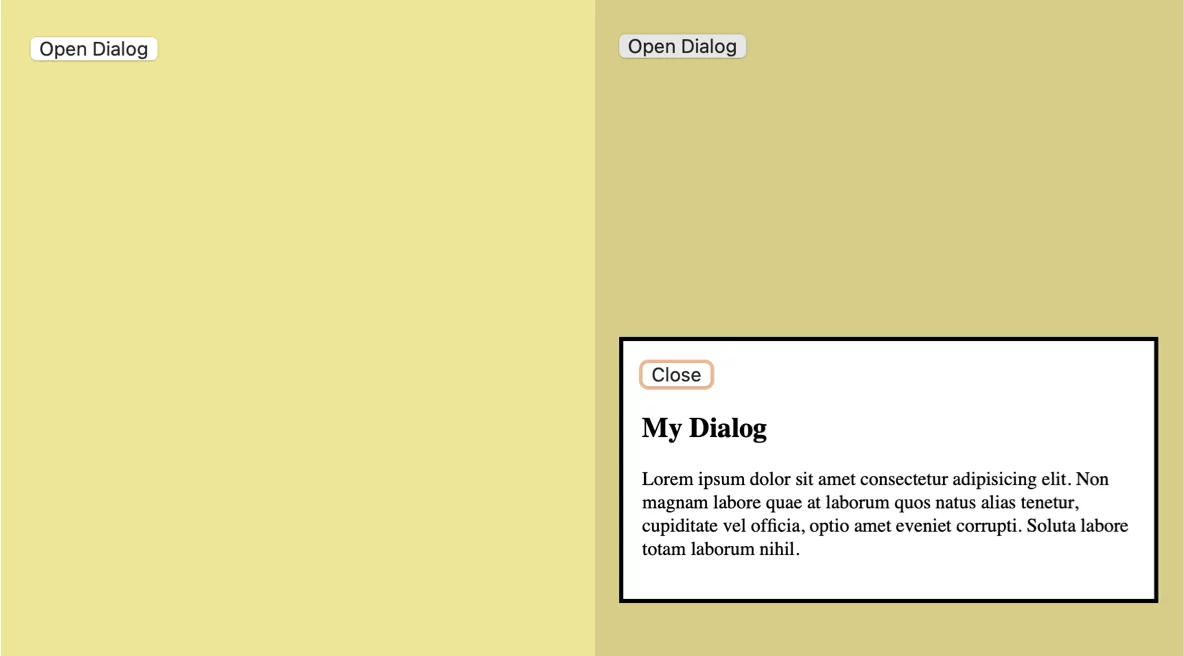
In contrast, calling .show() instead of .showModal() mimics a popover, bypassing the inert state and allowing simultaneous interaction with the underlying page.
Advanced CSS Styling
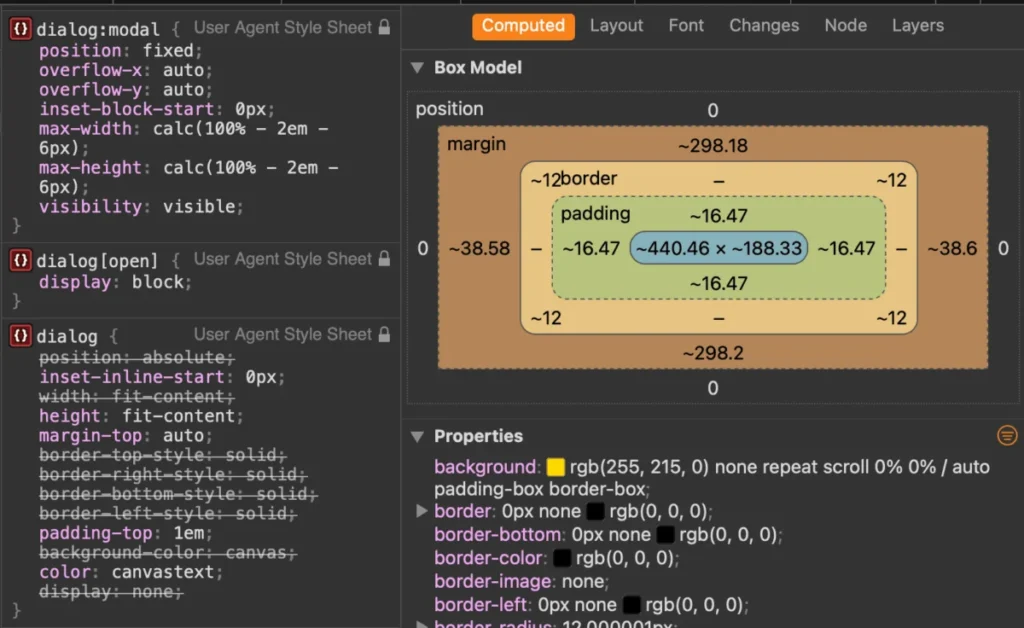
Styling the <dialog> element requires targeting specific pseudo-classes and pseudo-elements:
/* Target the dialog in its open state */
dialog:open
  background-color: #ffffff;
  border: 1px solid #ccc;
  border-radius: 12px;
  overflow: hidden;
  overscroll-behavior: contain;


/* Style the backdrop */
dialog::backdrop
  background-color: rgba(0, 0, 0, 0.5);
  backdrop-filter: blur(4px);
  overscroll-behavior: contain;
To prevent background page scrolling while a modal is active, modern CSS leverage overscroll-behavior: contain paired with overflow: hidden, or targets the body element conditionally:
body:has(dialog[open])
  overflow: hidden;
Animating Dialogs with @starting-style
Because dialogs transition from display: none to an active layout state, fading them in requires the @starting-style rule to define initial rendering parameters:

@starting-style
  dialog:open
    opacity: 0;
    transform: scale(0.95);


dialog
  opacity: 0;
  transform: scale(0.95);
  transition: opacity 0.3s ease, transform 0.3s ease;

  &:open
    opacity: 1;
    transform: scale(1);
Official Responses and Expert Insights: Dialog vs. Popover
Choosing between the Dialog API and the Popover API is a frequent architectural dilemma. According to web development expert Zell Liew, the fundamental differences lie in accessibility architecture.
- Popovers lack built-in focus trapping, do not automatically make background content
inert, and require manual ARIA role assignments. They are best suited for non-modal UI components like tooltips, dropdown menus, and floating menus. - Dialogs provide native focus management, automatic background inertness, top-layer rendering, and built-in keyboard accessibility (
Esckey handling). They are designed for critical user interactions requiring focused attention.
Implications for Frontend Architecture
The maturation of the native HTML <dialog> element signals a broader industry shift: moving away from JavaScript-heavy framework components and toward robust, browser-native primitives.
- Reduced Bundle Sizes: Developers no longer need third-party dependencies simply to manage backdrop overlays, z-index layers, or accessibility focus rings.
- Standardized Accessibility: By baking accessibility affordances (such as inertness and keyboard traps) directly into the browser rendering engine, compliance baselines rise automatically across web properties.
- Progressive Enhancement: Declarative features like invoker commands ensure that interface patterns degrade gracefully and function reliably even under constrained network conditions.
As browser vendors continue to optimize pseudo-classes like :open, :modal, and animation rules like @starting-style, native dialogs represent the gold standard for modern web application interfaces.