At Long Last: Samsung Finally Adds Real-Time Network Speed Monitoring to One UI
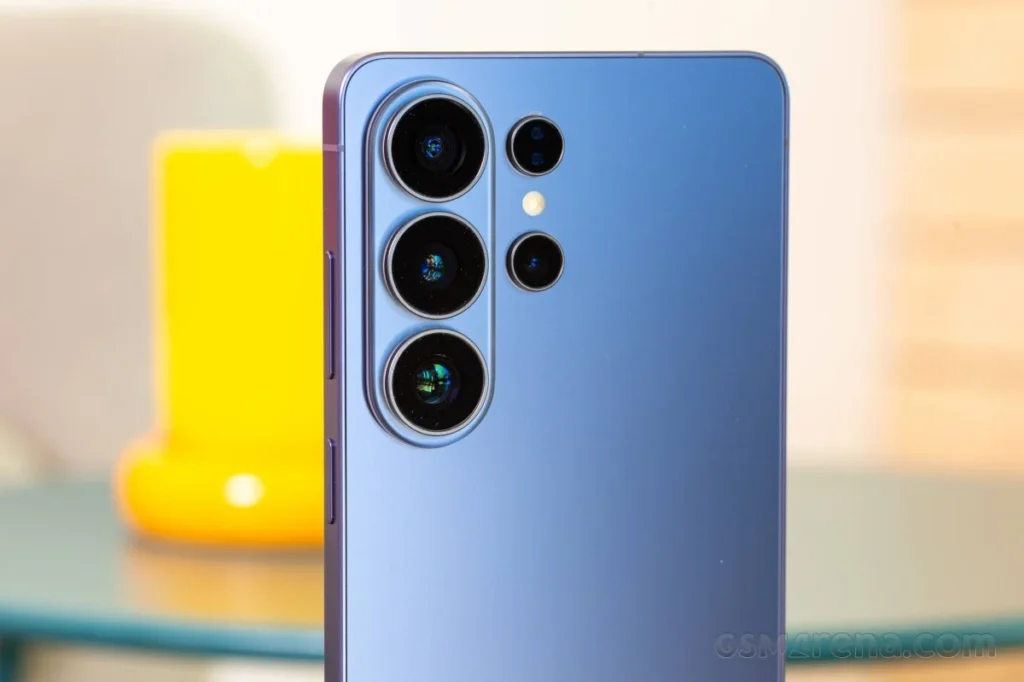
For over a decade, Samsung’s One UI—and its predecessor, Samsung Experience—has been widely regarded as one of the most polished, feature-rich Android skins on the market. From deep system-level multitasking to the highly customizable Good Lock ecosystem, Samsung has consistently set the bar for mobile software. Yet, there has been one persistent, glaring omission that has baffled power users for years: the absence of a native, real-time network speed indicator in the status bar.
While users of devices from brands like Xiaomi, OnePlus, and Realme have enjoyed the ability to monitor their upload and download speeds with a simple glance at the status bar for years, Samsung users were left in the cold. That changes today, as the latest iteration of the One UI software, specifically version 9 based on Android 17, finally bridges this feature gap.
The Main Facts: Bridging the Feature Gap
The long-awaited addition comes not as a core system toggle, but through an update to the QuickStar module within Samsung’s Good Lock suite. QuickStar, a plugin designed to allow users to customize the system status bar and Quick Panel, now features an option to enable real-time network speed monitoring.
The current implementation requires users to be running the Android 17-based One UI 9 beta, which is currently limited to the Galaxy S26 series in six select global markets. By navigating through the Good Lock interface, users can toggle the "Network Speed" indicator, which then manifests in the top-right corner of the status bar, providing a live readout of data throughput.
It is a small, granular change, but for a demographic of users who pride themselves on their ability to micromanage their device’s performance and connectivity, it represents a significant victory for user choice.
A Chronological Look at the "Feature Request" Era
To understand why this addition is generating so much buzz, one must look at the history of Samsung’s stance on status bar customization.
The "Root" Era (2014–2018)
In the early days of TouchWiz, users who wanted to monitor their network speeds were forced to resort to "rooting" their devices. By gaining superuser access, enthusiasts could install Xposed Framework modules or custom kernels that forced the status bar to display real-time metrics. This was, however, a risky endeavor that often tripped Samsung’s Knox security bit, permanently disabling features like Samsung Pay and Secure Folder.
The Third-Party App Era (2018–2024)
As Samsung’s software matured, rooting became less common. Users migrated to third-party applications from the Google Play Store—such as "Internet Speed Meter Lite"—to gain the functionality. These apps functioned by creating a notification in the status bar. While functional, these methods were often criticized for being "cluttered," as they occupied valuable notification space and lacked the seamless, native integration of a system-level feature.
The Modern Era (2025–2026)
With the launch of the Galaxy S26 and the transition to One UI 9, Samsung has finally acknowledged the feedback. By integrating the functionality into Good Lock rather than the core settings, Samsung has managed to satisfy power users while maintaining the "clean" aesthetic that the average consumer expects from a Galaxy device.
Supporting Data: Why Speed Indicators Matter
Why is this simple number in the status bar so important? For the average user, the answer might be "it isn’t." However, for a significant subset of the tech-savvy population, it provides critical diagnostic data.
- Network Diagnostics: If a streaming video begins to buffer or a file download stalls, the network speed indicator tells the user immediately if the issue is a dead zone in their connection or a server-side slowdown.
- Data Consumption Awareness: Seeing the speed indicator allows users to identify background syncs or data-heavy processes that may be consuming bandwidth without their explicit knowledge.
- Optimization: For remote workers or digital nomads who rely on mobile hotspots, knowing whether they are connected via 5G, 4G, or a throttled signal is vital for maintaining productivity.
In a global market where mobile data plans remain tiered and bandwidth availability is inconsistent, this feature is less about vanity and more about transparency.
Implementation Guide: How to Enable the Feature
For those fortunate enough to be running the One UI 9 beta on their Galaxy S26, the process is straightforward but requires specific steps:
- Preparation: Ensure your device is running the One UI 9 beta. At present, this feature is not confirmed for older versions of One UI.
- Download/Update: Install or update the Good Lock app from the Samsung Galaxy Store or Google Play Store.
- Module Access: Navigate to the "Plugins" or "Life Up" section of Good Lock and download/update the QuickStar module to version 15.7.00.27.
- Activation:
- Open QuickStar and ensure the master toggle at the top is turned on.
- Select "Visibility of indicator icons."
- Locate the "Network Speed" toggle and switch it to "On."
- Troubleshooting: If the Galaxy Store does not show the latest version, users may opt to sideload the APK manually. However, caution is advised when downloading files from non-official sources to ensure device security.
Official Responses and Strategic Implications
Samsung has historically been tight-lipped about why certain features take so long to implement. Unlike smaller manufacturers that throw every possible toggle into their settings menus, Samsung’s software philosophy is often dictated by a balance between "clean design" and "maximal functionality."
While there has been no official press release explaining the delay, industry analysts suggest that Samsung was likely concerned about the impact of a live-refreshing UI element on battery life and status bar real estate. The decision to house the feature within the "Good Lock" suite is a strategic one. It keeps the core One UI experience simple for the masses while allowing power users to opt into the features they crave.
Implications for the Future
The move signals a shifting tide in Samsung’s software development. By leveraging the Good Lock platform to test and deploy requested features, Samsung is creating a modular ecosystem that can evolve much faster than the core operating system.
Looking ahead, this raises the question: what other long-requested features will move from the "third-party app" category to the "Good Lock" category? Users have long asked for native battery health reporting, advanced charging limit controls, and more granular control over system animations—all of which are currently handled by apps or deep developer settings.
Conclusion: A Small Step, A Massive Win
The inclusion of a real-time network speed indicator might seem like a minor footnote in the massive release notes of an Android 17 update. However, for the Samsung faithful, it is a milestone. It proves that despite the company’s massive size and its focus on mainstream appeal, the voices of its power-user community are being heard.
As One UI 9 moves out of beta and into the wider Galaxy ecosystem, millions of users will finally be able to reclaim that small sliver of their status bar for the data they care about most. It is a refinement that elevates the Galaxy experience, proving that even after years of excellence, Samsung is still finding ways to polish its software to perfection.
For those waiting for the feature to hit their specific device, the wait may continue for a few more months as the stable rollout progresses. In the meantime, the Galaxy S26 series remains the lighthouse for this new era of granular control, setting a high standard for what is expected in the future of the Android ecosystem.
Disclaimer: As of the date of this report, the feature is limited to the One UI 9 beta. Users should always exercise caution when downloading software from unofficial sources. For the most secure experience, rely on official updates delivered directly to your device via the Software Update menu.