Mastering the Future of Content: How to Create Pro-Quality AI Videos With Google Gemini Omni

By The AI Explored Editorial Team
The landscape of digital content creation is undergoing a seismic shift. For years, producing professional, scroll-stopping video content required expensive camera crews, lighting rigs, specialized software, and hours of tedious editing. Today, generative artificial intelligence is democratizing high-end production, allowing solo entrepreneurs, small-business marketers, and digital creators to build cinematic-quality videos directly from a smartphone or desktop.
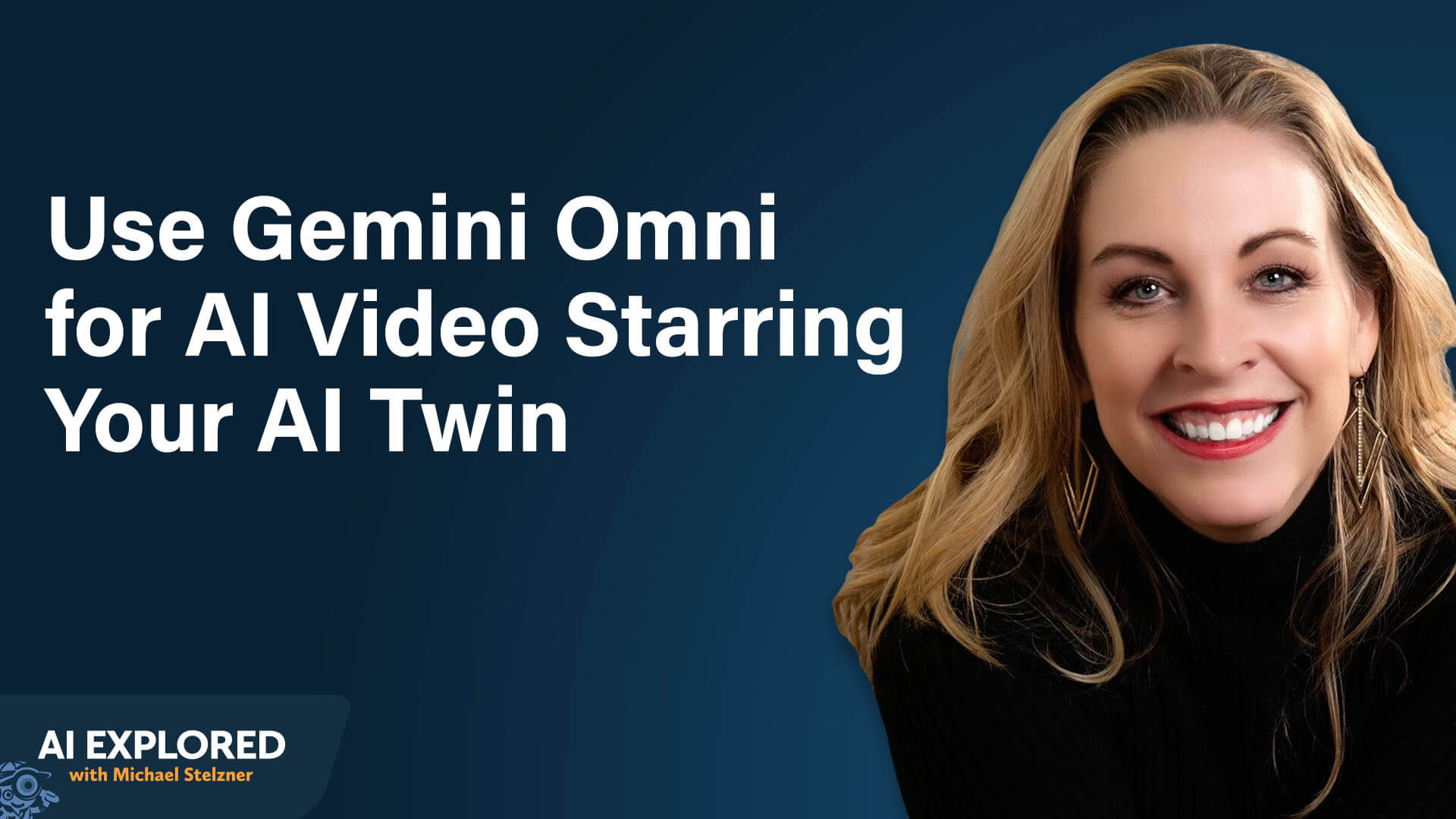
At the forefront of this revolution is Google’s Gemini Omni (officially known as OmniFlash). Co-created by AI video strategist and VEI Creative founder Eve Whitaker alongside Michael Stelzner, modern workflows utilizing Gemini Omni are redefining what is possible in short- and long-form social media marketing.
This comprehensive guide explores the core mechanics of Gemini Omni, how to set up your own digital "AI twin," master the art of natural language prompting, edit existing video footage, and stitch together multi-clip narratives for platforms like TikTok, Instagram Reels, and YouTube Shorts.
Main Facts: What Is Gemini Omni and How Does It Work?
Google’s Gemini Omni is the powerful successor to Veo3, Google’s foundational AI video generation framework. What separates Omni from competitors in the crowded AI video market is its architecture: it is built on Google’s world models, which were extensively trained on YouTube’s massive video library. This heritage gives the tool a sophisticated, native understanding of physical movement, diverse environments, human anatomy, and nuanced speech inflections.
Accessibility and Tiered Pricing
Gemini Omni is integrated across multiple Google platforms and third-party aggregators, making it accessible at various technical and financial levels:
- The Gemini App: The simplest entry point. Available on desktop and mobile, users simply tap the plus button within the chat interface and select the "Video" option to run Omni behind the scenes.
- Google Labs: Offers a more robust suite of advanced features, specifically unlocking vital video editing and modification tools.
- Third-Party Aggregators: Platforms like Open Art and Higgs Field bundle Omni alongside other AI models into a single, unified dashboard.
According to Eve Whitaker, beginners should start modestly with the Gemini app using a standard subscription (approximately $20/month) to learn the ropes. While ultra tiers run around $200/month and grant expansive access to Google’s full developer toolkits, most users do not need this immediately. Credits are consumed dynamically per generation, with higher resolutions (such as 1080p) and longer run times drawing down credits faster.
Furthermore, users should note that the native Gemini app enforces strict generation caps—typically throttling users after five or six videos, though allowances reset within an hour or two. For heavier production workloads, pairing a Google Labs subscription with a third-party aggregator offers the ideal balance of deep editing capabilities and multi-model versatility.
Chronology and Setup: Building Your First AI Twin
Unlike traditional AI video clones—such as those generated by HeyGen, which accept a long script and output a talking-head video in a single pass—Gemini Omni relies on what Whitaker terms an "AI twin."
An AI twin is a digital representation of a real person that can be seamlessly transposed into any custom scene, environment, or imaginative scenario via text prompts. Currently, the primary technical constraint is that Omni generates clips in 10-second increments, meaning longer narratives require post-production assembly.
Step-by-Step Avatar Setup
Setting up your avatar is tied strictly to your Google account for privacy and security. Unlike some open-source models, Omni restricts avatar access exclusively to its creator; no other user can call up or manipulate your digital twin.
- Initiate Capture: Open the Gemini app on a mobile device, tap the plus icon, and scroll down to select "Avatar."
- Face ID Sequence: Follow the on-screen prompts through a quick capture sequence looking left, right, up, and down.
- Voice Calibration: Read aloud a series of deliberately nonsensical sentences. This strange text is intentionally designed by Google engineers to capture your natural cadence and speech patterns without letting you overthink your delivery.
- Cross-Platform Sync: Once named, the avatar syncs instantly across platforms. You can build it on your phone and immediately call it up on your desktop via Google Labs by typing the
@symbol followed by the avatar’s name.
Best Practices for High-Quality Captures
Because the AI will seamlessly fill in the gaps if it encounters poor conditions, the recording environment dictates the fidelity of your avatar. Follow these rules during setup:
- Lighting: Prioritize natural light. Stand facing or side-on to a window. Avoid placing a window directly behind you, which causes a silhouetting effect that degrades capture quality.
- Audio: Eliminate background noise. Clean audio ensures the AI accurately reproduces your speech patterns rather than hallucinating audio data.
- Wardrobe: Whatever you wear during the capture sequence becomes your avatar’s default outfit. Choose a versatile outfit, as the default will reappear unless explicitly overridden by a prompt.
- Accessories: Avoid hats and glasses during setup. The AI cannot register what lies beneath a hat, making it difficult to remove later. Instead, set up bare-headed, and later upload reference photos to prompt specific headwear.
- Voice Delivery: Speak in your natural, conversational voice. Exaggerated or hyper-animated tones during setup lock that high-energy baseline into every future generation.
Supporting Data & Frameworks: The Four-Element Prompting Formula
Gone are the days of formatting prompts in complex JSON or rigid coded syntax. Gemini Omni processes natural language brilliantly, but precision yields the best cinematic results. Whitaker advocates for the Four-Element Prompting Formula: Subject, Action, Environment, and Camera.
The Four Elements Defined
- Subject: Who or what appears in the frame (e.g., calling your avatar via
@AvatarName). - Action: What the subject is doing (e.g., dancing, parachuting, walking across a kitchen counter).
- Environment: The setting of the scene (e.g., a bustling street, a beach in Mexico, an alien planet).
- Camera: The relative position and movement of the lens (e.g., close-up, extreme wide, tracking shot).
Sample Prompt:
@Eve Whitaker is dancing in the street. It is raining tennis balls. A bunch of dogs are walking around her. She walks up to the camera and says, ‘Did that get your attention?’
Iterative Refinement and Script Management
Rather than trying to get a video right on the first try, professional creators use iterative prompting. If a subject appears too far away, simply input: "Keep everything else the same, but have her stand close to the camera."
When adding dialogue, always supply a short script. If left to its own devices, Omni will improvise unpredictable audio. Crucially, never give Omni more than 10 seconds of dialogue at once. Exceeding this limit forces the AI to compress the spoken lines into the 10-second window, resulting in rushed, garbled audio.
To manage longer scripts, creators use Large Language Models (LLMs) like ChatGPT or Claude. By prompting an LLM with: "I want to make a 30-second commercial in Omni using 10-second clips; help me break down the script," creators can systematically blueprint multi-part narratives.
Official Responses and Strategic Use Cases: Scroll-Stopping Hooks
The most immediate, high-ROI application for Gemini Omni is crafting viral, attention-grabbing hooks for short-form video formats across TikTok, Instagram Reels, and YouTube Shorts.
The "Captain Obvious" Brainstorming Technique
When generating conceptual hooks, creators often fall into the trap of predictable ideas—such as showing someone sitting at a cluttered desk to represent "stress." To break past this, Whitaker employs the "Captain Obvious" technique borrowed from television writers’ rooms.

When an LLM or AI assistant returns a cliché visual suggestion, creators must explicitly redirect it:
"That’s Captain Obvious. Think outside the box. Use metaphors, analogies, and surrealism."
This simple feedback loop steers generative tools toward high-impact visuals, such as an avatar getting Nickelodeon slime dumped on its head, riding a buffalo in front of a real estate listing, or shrinking down to six inches tall to walk across a kitchen counter.
Multi-Platform Workflow and Testing
Creating these assets is remarkably fast. For instance, an avatar riding a buffalo can be prompted, generated, and downloaded on a mobile phone in the time it takes to wait in line at a coffee shop.
Once generated, these 2-to-3-second AI hooks are paired with traditionally filmed talking-head footage. By utilizing native social platform features—such as Instagram’s trial reels feature—creators can test up to seven different AI-generated hooks for a single piece of core content, dynamically allocating promotion dollars to the hook that generates the highest retention and engagement.
Implications: Editing Real Footage and Assembling Long-Form Content
Gemini Omni is not just a generation tool; it is a powerful video modifier. Available via Google Labs and third-party aggregators, creators can upload raw, real-world footage—whether shot on an iPhone or rendered via AI—and transform it using natural language text prompts.
Advanced Editing Capabilities
- Environmental Conversions: Instantly transform a summer park path into a winter wonderland while keeping the subject’s shoes, pants, and physical movement completely intact.
- Motion Graphics & Object Removal: Automatically add animated text callouts to cooking videos or erase unwanted background distractions with a single descriptive sentence.
- Wardrobe and Background Swaps: Change a subject’s clothing or transport a desk-bound talking head to a beach in Mexico or a professional news broadcast studio. (Note: Uploaded source footage must be cropped to 10 seconds or less using Omni’s built-in trimming tools before edits are applied).
Assembling 90-Second Narratives
While individual Omni outputs are capped at 10 seconds, creators routinely assemble sweeping, multi-minute videos by planning transitions in pre-production.
By mapping out the narrative arc with an LLM—specifying that clip transitions must cut together smoothly without jarring jump cuts—creators render individual segments independently. These segments are then stitched together in traditional mobile editors like CapCut or Instagram’s native editing suite.
To maximize resource efficiency, Whitaker advises generating social media clips at 720p resolution to conserve credits, reserving 1080p outputs strictly for large-screen conference displays or broadcast television. Videos can always be upscaled later using third-party software, ensuring a cost-effective production pipeline for independent creators and lean marketing teams.
Conclusion
Google’s Gemini Omni represents a watershed moment for digital media. By merging the world-modeling capabilities of Google’s extensive video database with intuitive natural language prompting, the barrier to cinematic video production has effectively evaporated. Whether you are a small-business owner looking to boost social media engagement with surreal, scroll-stopping hooks, or a content strategist seeking to modify real-world footage on the fly, mastering Gemini Omni is no longer optional—it is the competitive edge defining the next era of digital marketing.